
Global Accessibility Awareness Day (GAAD) is held each year in May to advocate for digital access and full inclusion of people with disabilities and impairments around the world.
In recognition of GAAD, FIU Online is continuing its All Access Day initiative as part of a broader accessibility awareness campaign focused on supporting accessible and inclusive learning experiences across fully online and certified hybrid courses.
FIU Online instructional design professionals are always available to support faculty with accessibility-related consultations, course reviews, accessibility audits, and enhancement recommendations in their online and certified hybrid courses. Whether you are looking to better understand accessibility best practices or improve specific course materials, our team is here to help.
Faculty are encouraged to connect directly with their partnered instructional designer or submit a support request through the FIU Canvas Help support forms for instructors. Please use the "Connect with a FIU Canvas Professional" form and then the "Course Content Accessibility" option when submitting a request.
Within Canvas courses, faculty can also use the Ally Accessibility Tool to request assistance on specific accessibility issues identified within course content.
Accessibility Support & Resources
Connect with your instructional designer for guidance on accessibility improvements, course audits, and inclusive course design support in your fully online and certified hybrid courses.
Need assistance? Submit a request through the FIU Canvas Help support forms for instructors.
-
General Accessibility Support
-
- Faculty can email their ID directly
- Faculty and students can review additional resources
- Instructor Resources
- Student Resources
- Or faculty can submit a request
- Go to https://canvas.fiu.edu/support/instructors
- Select “Connect with an FIU Canvas Professional”
- Fill out the form fields
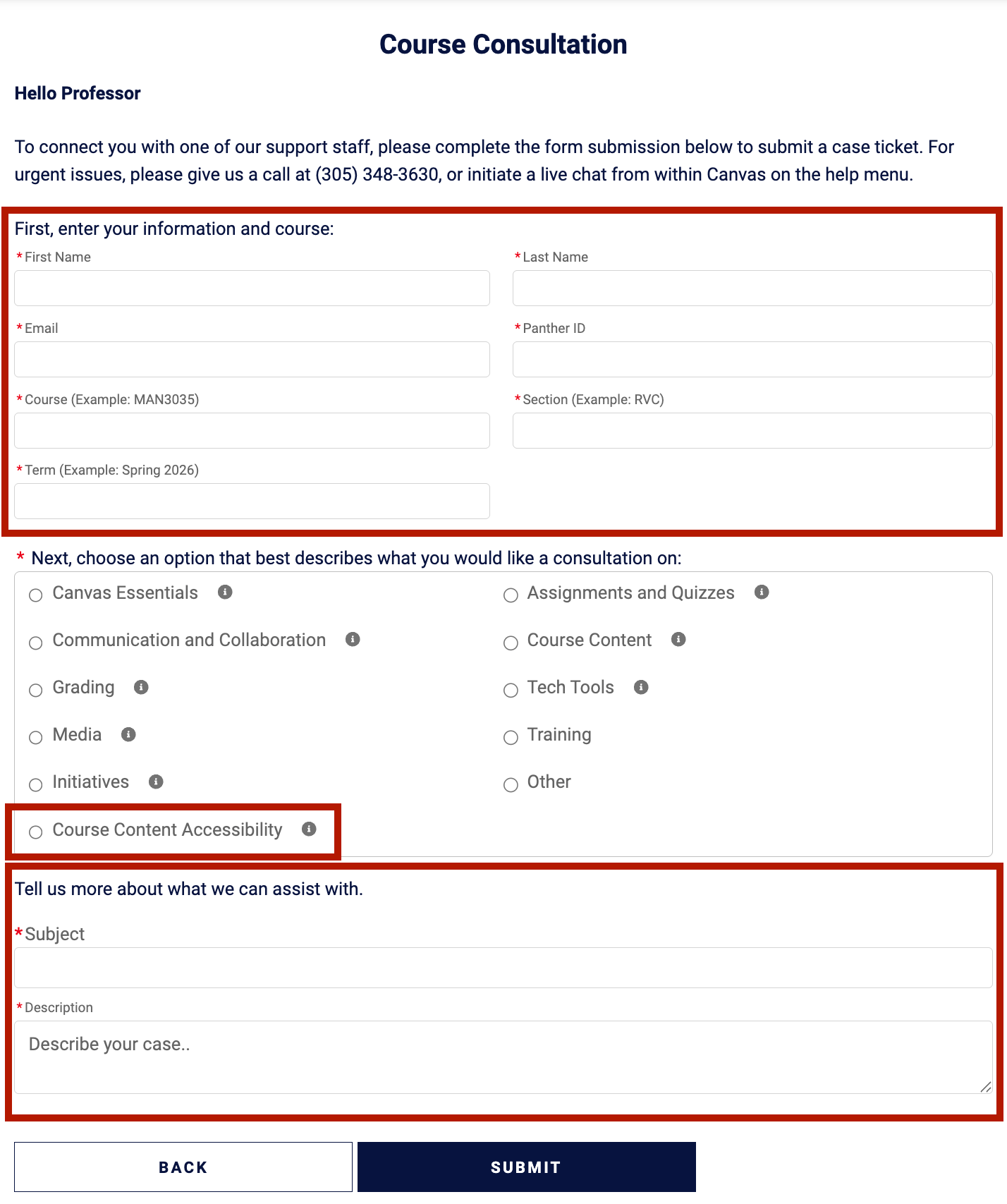
- Submit request. For FIU Online supported courses, the request will go to the ID who can then follow up to provide support.
-
-
Specific Accessibility Support
- From within a Canvas course, faculty can engage with the Ally Accessibility tool when viewing or editing content through the Canvas shell. Faculty may notice accessibility gauges as they are working in Canvas.
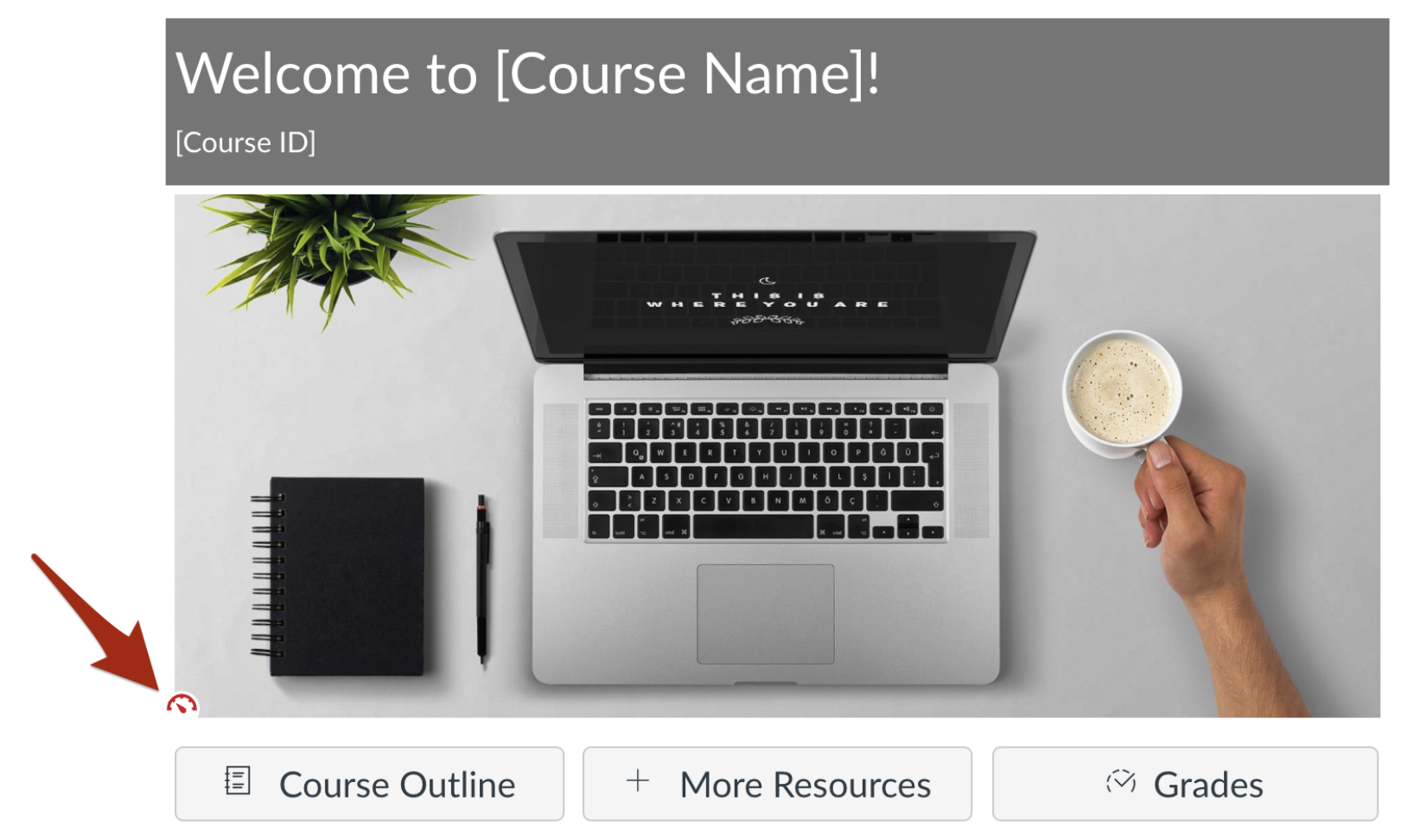
- While viewing content, look for gauges near images or course files.
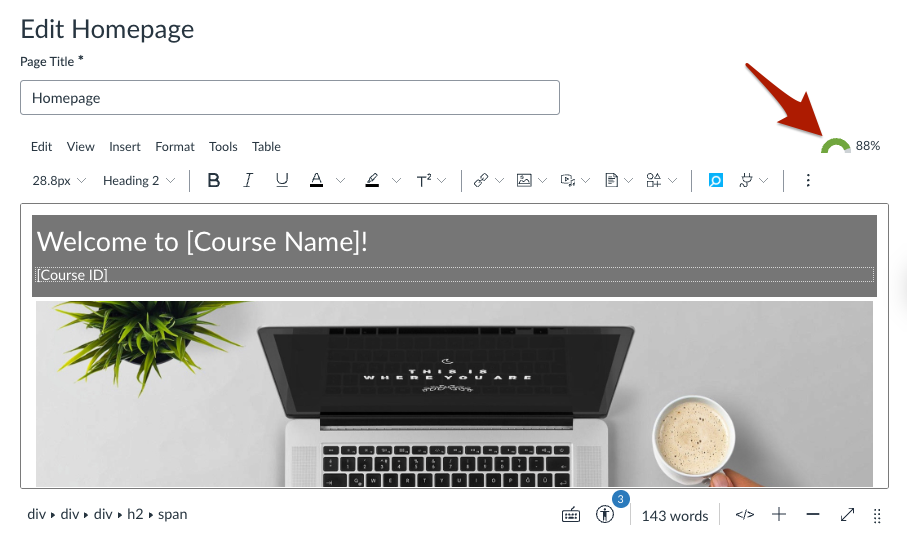
- While editing content, look for gauges in the upper right above the Rich Content Editor.
- While viewing content, look for gauges near images or course files.
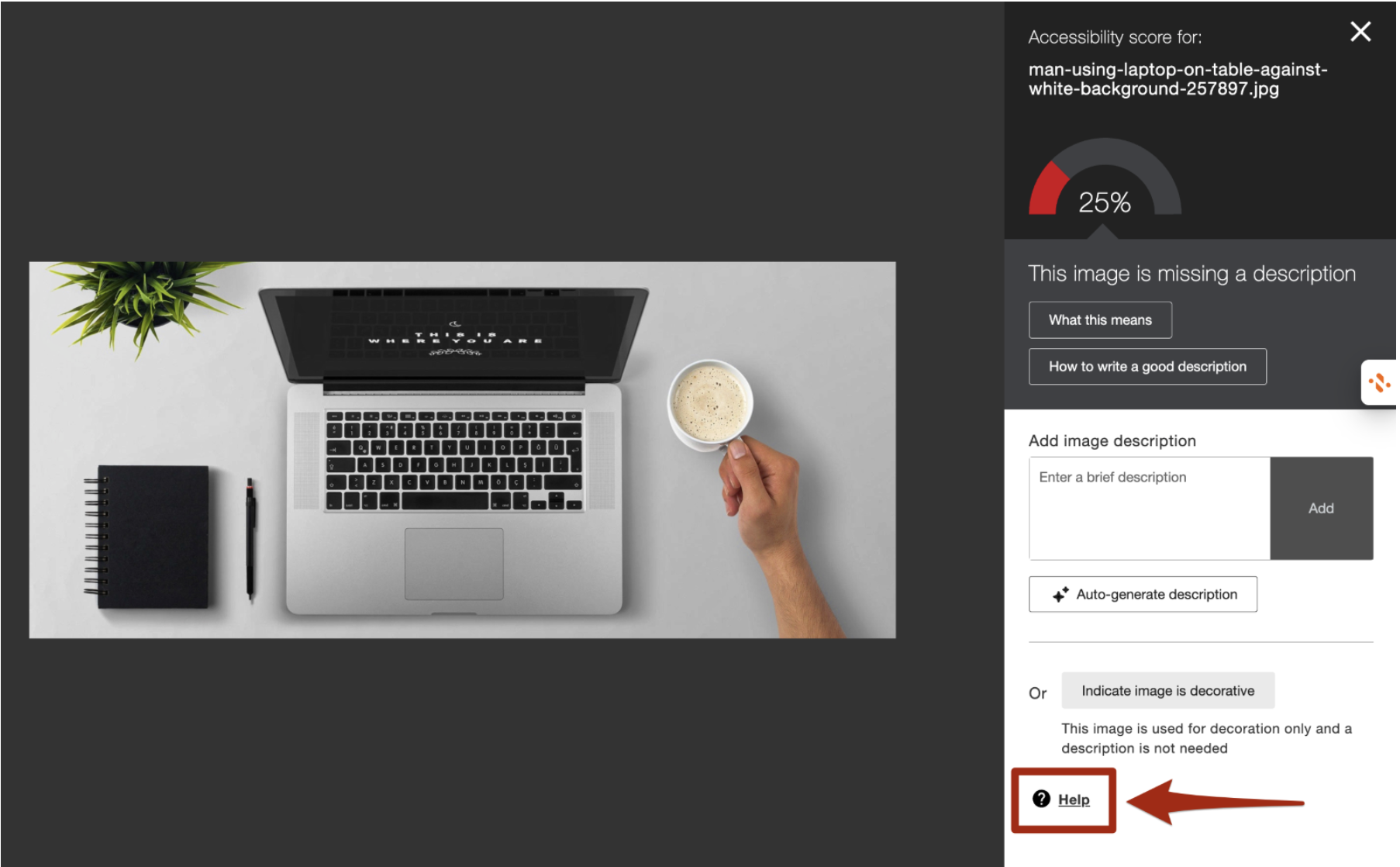
- Clicking on any gauge will launch the Ally Accessibility tool which will provide information and guidance on how to fix any issues. If faculty need additional support or guidance working on a particular accessibility issue, they can select the Help option within the Ally tool.
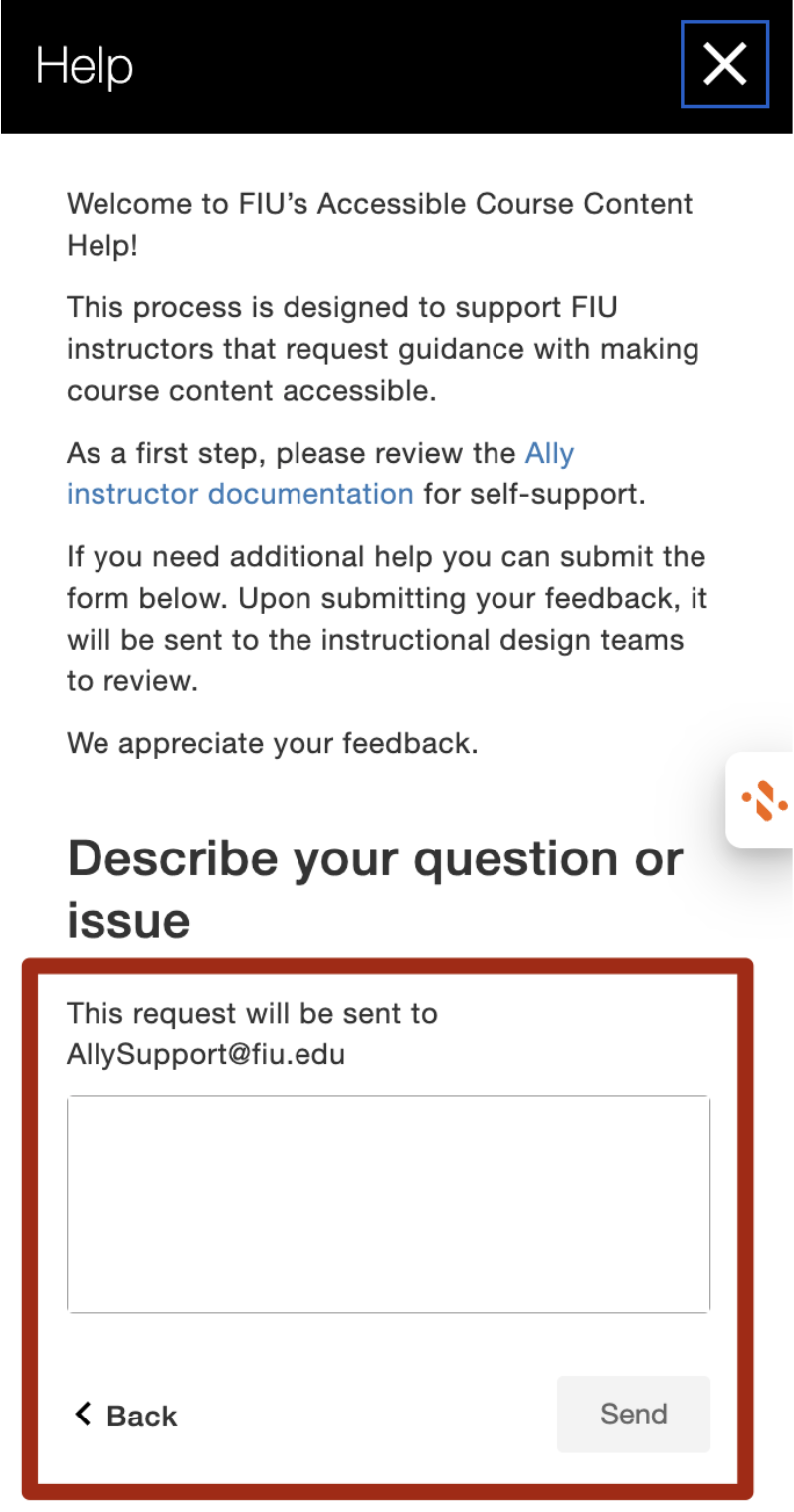
- Then faculty can enter a note describing what they would like help with and hit “Send” to submit a help request to our team.
- From within a Canvas course, faculty can engage with the Ally Accessibility tool when viewing or editing content through the Canvas shell. Faculty may notice accessibility gauges as they are working in Canvas.